The Human Algorithm/Claude Command Not Found. Your Computer Is Looking in the Wrong Place.
The Human Algorithm • MondayClaude Command Not Found. Your Computer Is Looking in the Wrong Place.
You installed Claude Code. You typed the command. The terminal told you there is no such command. Nothing failed, and nothing is broken. The program is on your disk right now, and your shell simply does not know to look in the folder it was put in. Here is why, and the one line that fixes it.

You installed Claude Code, typed claude, and the terminal told you there is no such command. Nothing failed, and nothing is broken. The program is sitting on your disk right now, in a folder you could open in a file manager and look at. Your shell simply does not know to look there. The fix is one line, and you run it once.
I can see how many people hit this wall, because they arrive at my site looking for the way over it. Over the last three months this site appeared in search results 1,970 times and was clicked 16 times, which is a click-through rate of eight tenths of one percent. Those impressions came from 133 different search phrases, and roughly fifty-five of them are the same practical question: how do you get Claude Code running in a terminal. A few arrive already broken, typed in the exact words the error uses, including claude -bash: claude: command not found and claude terminal not found. None of those people found an answer here. The wall is worth a few minutes of your attention, because it is not really about Claude Code.
What the terminal is actually telling you
When you type a word at a command prompt, your computer does not search the whole disk for a program with that name. That would take a long time, every single time. Instead it checks a short list of folders, in order from left to right, and stops at the first match. That list has a name. It is called PATH.
Think of sending someone to fetch a hammer, and handing them a note that says: look in the kitchen drawer, then the car. The hammer is in the shed. It exists, it is twenty feet away, and they are going to come back and tell you there is no hammer. They checked the list they were given, and the shed was never on it.
The error does not mean “this program does not exist”. It means “this program is not in any of the places I was told to look”.
Claude Code installs itself to ~/.local/bin on macOS, Linux and WSL, and to C:\Users\you\.local\bin on Windows. If that folder is not on the list, you get the error, and which words the error uses depends on where you are standing.
Which terminal are you actually in
This matters more than it sounds, because the commands below are different for each one, and running the right command in the wrong place is how people lose an afternoon.
macOS. Press Cmd and Space together, type Terminal, press Enter. The default shell on macOS is Zsh.
Linux. Press Ctrl, Alt and T together, or find Terminal in your applications menu. On most distributions the default shell is Bash.
Windows. Press the Windows key and X together, then choose Windows PowerShell or Terminal. Windows has two command line programs that look almost identical, and you need to know which one you are looking at. PowerShell shows PS C:\Users\YourName> at the start of each line. Command Prompt shows C:\Users\YourName>, the same thing without the PS. That two-letter difference changes every command in this article.
WSL, the Windows Subsystem for Linux, is a Linux machine living inside your Windows one, and it counts as Linux here. If you installed Claude Code inside WSL, you have to start it inside WSL too, from the WSL terminal rather than from PowerShell or Command Prompt. Follow the macOS and Linux instructions in that window.
On macOS and Linux, if you are not sure which shell you have, ask it:
echo $0You can also read your own PATH, and seeing it once makes the rest of this obvious. On macOS and Linux, where the folders are separated by colons:
echo $PATH | tr ':' '\n'In Windows PowerShell, where they are separated by semicolons:
$env:PATH -split ';'In Windows Command Prompt:
echo %PATH%Every folder that prints is somewhere your computer will look. If .local\bin or .local/bin is not among them, the shed is not on the note.
First, check that the program is really there
Do this before changing anything, because adding a folder to your PATH achieves nothing if there is no program sitting in it. On macOS, Linux or WSL:
ls -la ~/.local/bin/claudeIn Windows PowerShell:
Test-Path "$env:USERPROFILE\.local\bin\claude.exe"In Windows Command Prompt:
dir "%USERPROFILE%\.local\bin\claude.exe"A listing, or the word True, means the program is there and this is a PATH problem. Carry on. No such file or directory, the word False, or File Not Found means there is no installation to find, and you need to go back and install it rather than edit anything.
The installer tries to warn you about all of this. When it finishes, it checks, and if the folder is missing it prints a line under Setup notes: reading Native installation exists but ~/.local/bin is not in your PATH. It prints the fix underneath and leaves the applying to you. Most people have closed the window before reading that far.
The fix on macOS
You are adding one folder to the list, permanently, and you do it once. For Zsh, which is the default on macOS:
echo 'export PATH="$HOME/.local/bin:$PATH"' >> ~/.zshrc
source ~/.zshrc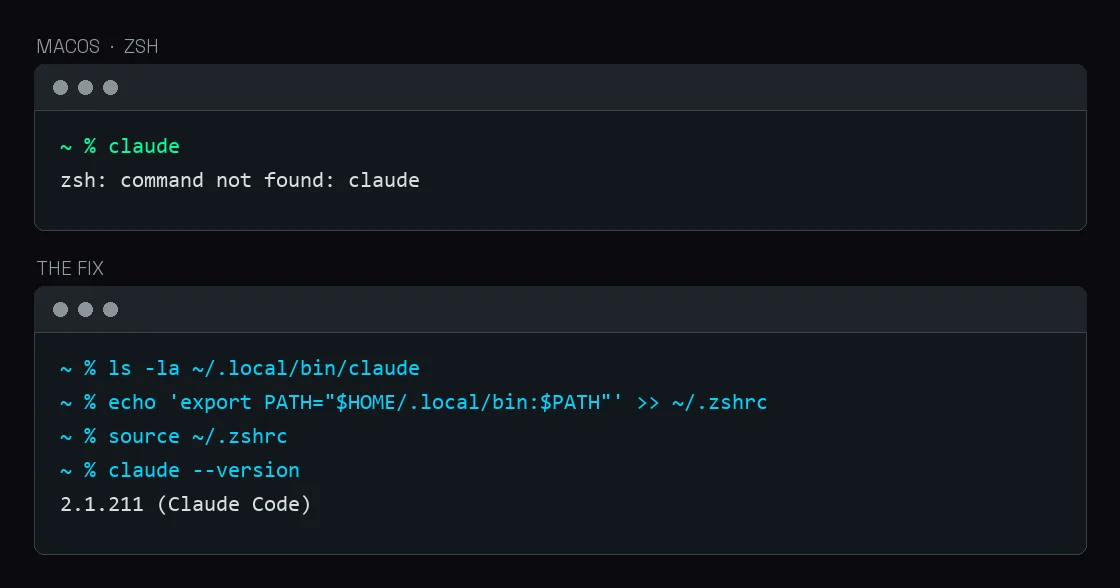
The first command writes the setting down so every new terminal window gets it. The second applies it to the window you are sitting in, so you do not have to close anything. The first command prints nothing at all when it works. Silence there is success.
Bash on macOS is the exception worth knowing about. Terminal on macOS starts Bash as a login shell, which skips ~/.bashrc entirely and reads only the first of ~/.bash_profile, ~/.bash_login or ~/.profile that exists. Put the line in ~/.bash_profile instead. If you already have a ~/.bash_login or ~/.profile, add it to that file rather than creating a new one.
The fix on Linux and WSL
For Bash, which is the default on most distributions:
echo 'export PATH="$HOME/.local/bin:$PATH"' >> ~/.bashrc
source ~/.bashrc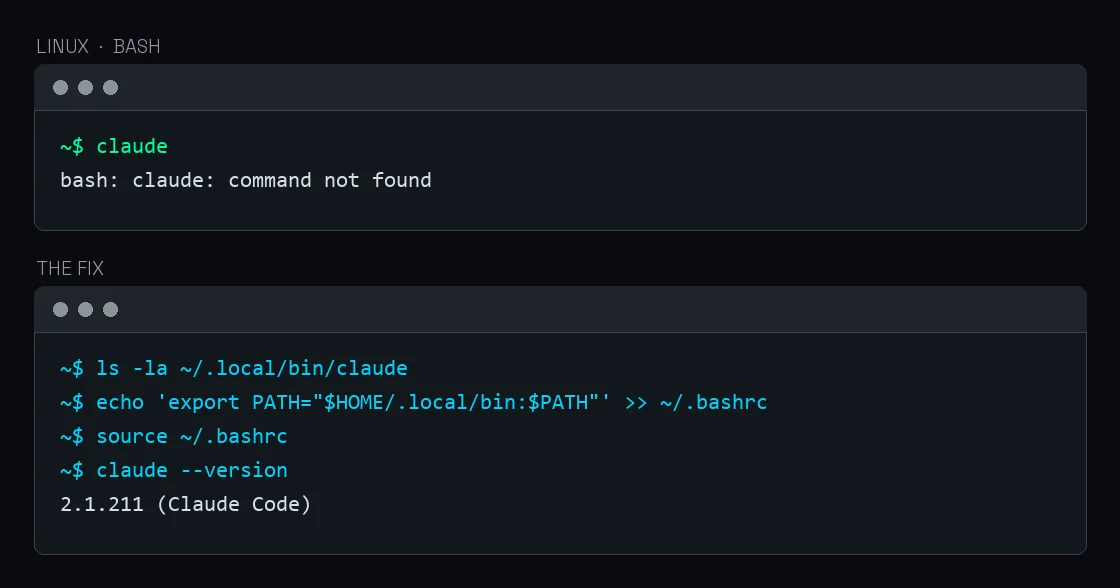
If you run something other than Bash or Zsh, such as fish or Nushell, the idea is identical and only the syntax changes: add ~/.local/bin to your PATH using your own shell’s configuration, then restart the terminal.
Then check, in any of them:
claude --versionA working installation prints a version number followed by (Claude Code).
The fix in Windows PowerShell
Check whether the folder is already on your list:
$env:PATH -split ';' | Select-String '\.local\\bin'If nothing prints, add it:
$currentPath = [Environment]::GetEnvironmentVariable('PATH', 'User')
[Environment]::SetEnvironmentVariable('PATH', "$currentPath;$env:USERPROFILE\.local\bin", 'User')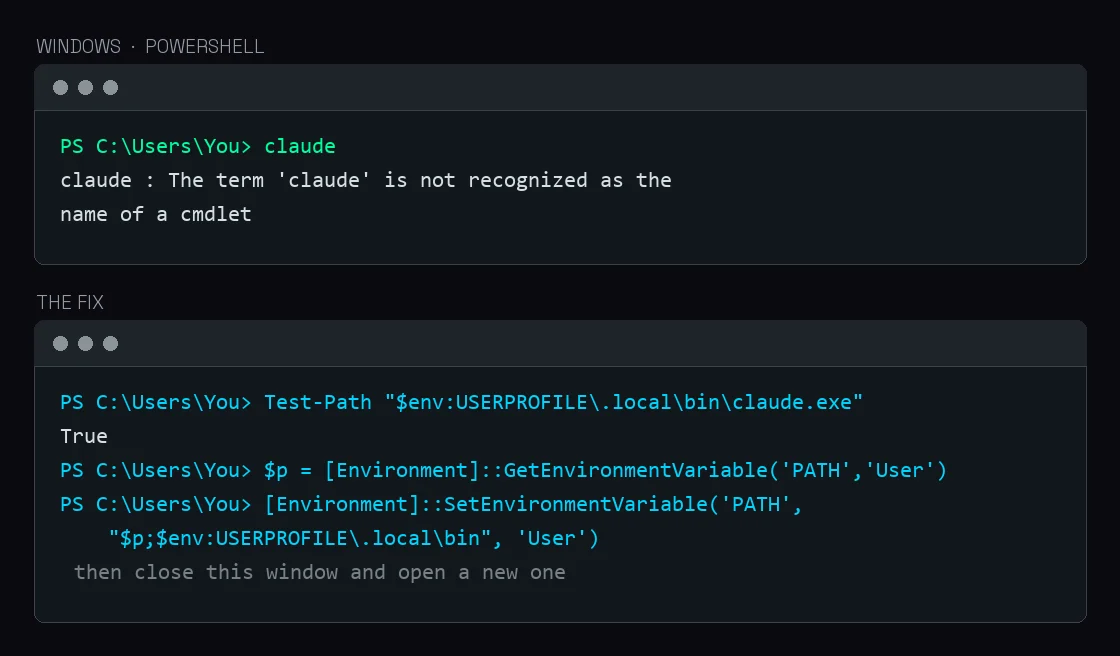
That writes the setting into your Windows user account, so it survives restarts. It does not reach into windows that are already open, and there is no Windows equivalent of source that will pull it in. Close the terminal, open a new one, and run claude --version there.
The fix in Windows Command Prompt
Command Prompt is the one most articles skip, and it is still what a lot of people open. Check your PATH:
echo %PATH% | findstr /i "local\bin"If that prints nothing, the folder is not on your list. Command Prompt has no tidy one-line way to fix this permanently, so you use the Windows settings instead. Open System Settings, search for Environment Variables, find Path under the user variables, and add this folder to it:
%USERPROFILE%\.local\bin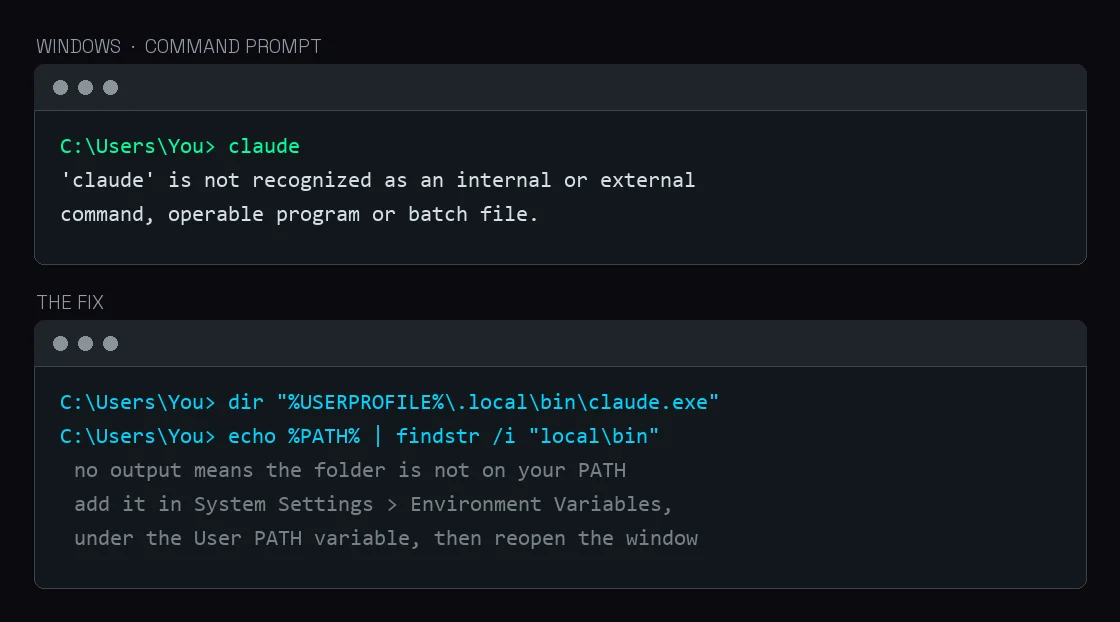
Close the window, open a new one, and run claude --version.
When it still says not found
Five reasons, in the order they are likely.
The window is older than the change. A terminal reads PATH once, when it opens, and keeps that copy until it closes. A window you opened before you ran the fix is still working from the old list. Open a new one.

The terminal is inside an editor. A terminal panel inside VS Code or a similar editor inherits its PATH from the editor, and the editor inherited its own when you launched it. Quit and reopen the whole editor. A fresh tab inside the same window inherits the same stale list.
The line went into a file you are not using. On macOS and Linux, check that it is actually written where you think, using your own shell’s file name:
grep -n '.local/bin' ~/.zshrcThat prints the line and its line number if it is there, and prints nothing if it is not. If it prints nothing, run echo $0 again and add the line to that shell’s file.
You installed the editor extension and nothing else. This one catches people, and it is not a PATH problem at all. The VS Code extension carries its own private copy of Claude Code inside the extension folder for its own chat panel. It does not put anything in ~/.local/bin, and it does not touch your PATH. If the extension is all you installed, there is genuinely no claude for your terminal to find, and no amount of editing shell files will conjure one. Run the standalone install.

It broke immediately after an update, on Windows. If claude worked yesterday and stopped being recognised right after Claude Code updated itself, this is a different problem with the same symptom, and the documentation has a specific fix for restoring claude.exe from the backup the updater leaves behind.
There is also a command that checks all of this for you and changes nothing:
claude doctorIt prints read-only diagnostics about your installation and your settings file, including problems it can see and what it suggests doing about them. It is the first thing to run when something is strange.
How to get back out
Since you are going to be in there shortly: the way out is /exit or exit, typed inside the running session, or Ctrl and D pressed twice on an empty prompt. After not being able to start it, this is the second most common thing people search about Claude Code. Typing /help inside a session lists the rest.
None of this is a Claude Code idea, and none of it is new. The search path came from Multics, and by the third version of Unix it was part of the operating system, because /bin had grown too crowded to be the only place worth looking. Windows does the same thing with semicolons where Unix uses colons. Every command line program you install for the rest of your life will either put itself somewhere on that list or fail to, and when it fails, your computer will tell you the program does not exist. It will say this with total confidence while the program sits in a folder you could point at.
Forward → Upward ↑ Onward ↗︎
Mstimaj
Sources and Further Reading
- Troubleshoot installation and login, Claude Code documentation. The per-platform error table, the PATH fix for Zsh, Bash, PowerShell and Command Prompt, the note that the VS Code extension does not place
claudeon your PATH, and the fix forclaude.exegoing missing after a Windows update. - Terminal guide for new users, Claude Code documentation. Opening a terminal on each system, and how to tell PowerShell from Command Prompt.
- Advanced setup, Claude Code documentation. Install directories, system requirements, WSL, and
claude doctor. - Quickstart, Claude Code documentation. Starting a session, and leaving one.
- PATH (variable), Wikipedia. Multics as the origin of the search path, its arrival in Version 3 Unix, and the colon and semicolon separators.
Comments
No comments yet. Yours can be the first.