Three ways to use AI on your own computer
A chat box, a desktop agent, and a terminal agent. The difference is not how clever they are. It is how much of your computer each one is allowed to touch.

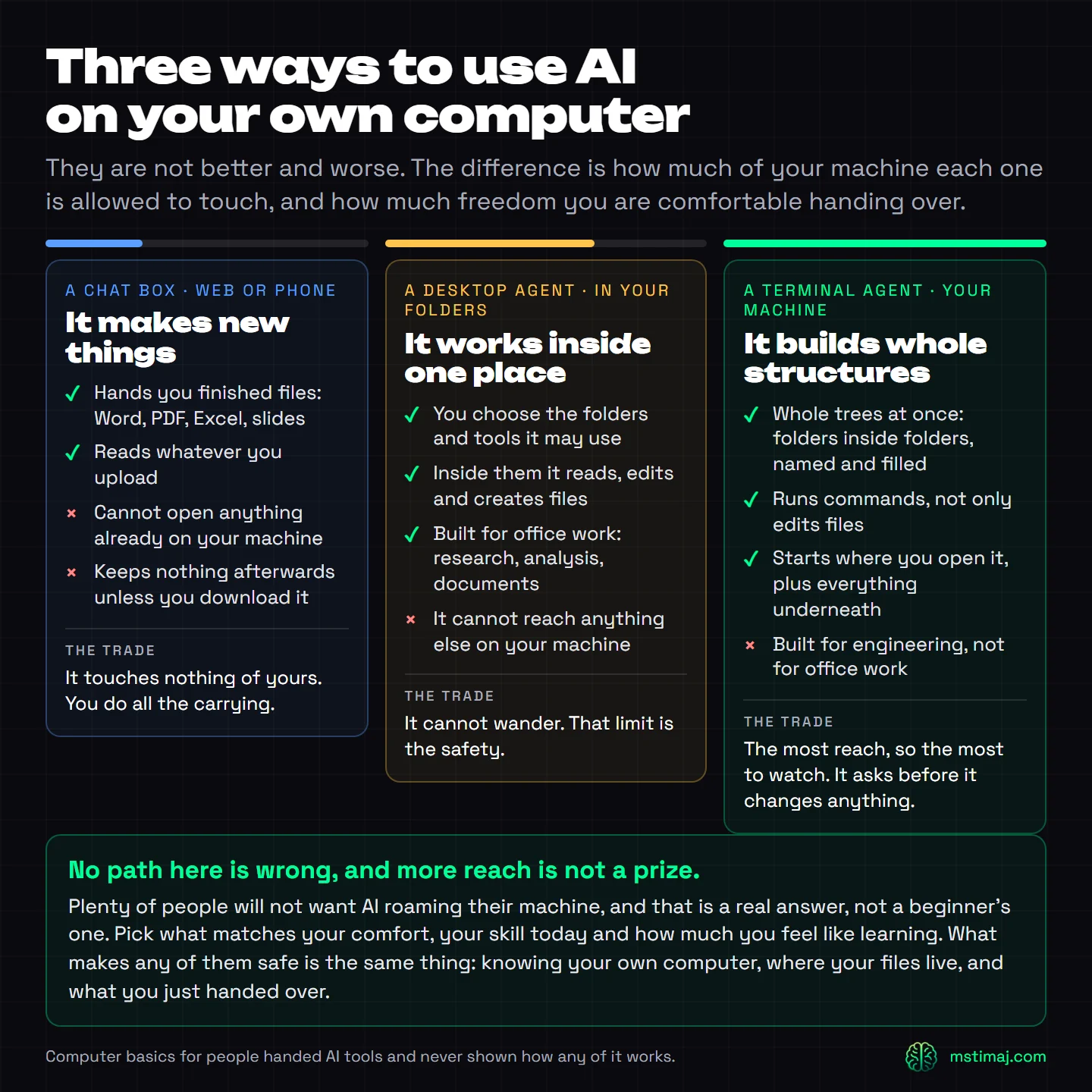
Every AI tool you have been offered falls into one of three groups, and the difference between them is not how clever they are. All three usually run the same model underneath. The difference is how much of your computer each one is allowed to touch.
Nobody explains this, so most people use the first group forever and assume the other two are for programmers. They are not. One of them was built specifically for people who do not write code.
A chat box
This is the one everybody knows. You open a website or an app, you type, and it answers. It can also hand you finished files now: a Word document, a PDF, a spreadsheet, a deck. You upload things to it and it reads them.
What it cannot do is open anything that is already sitting on your machine. It has no idea your computer exists. You carry files to it, and you carry the results back. When you close the window, it keeps nothing unless you downloaded it.
That limit is also the reassurance. A chat box touches nothing of yours, because it cannot reach anything of yours.
A desktop agent
This is the group almost nobody has been told about, and it is the one built for ordinary office work.
It is an app that runs on your computer and can work with your actual files. The important part is how it gets permission. You choose which folders it may use, in advance. Anthropic states the rule plainly for its own version: you choose the folders and tools, and it cannot reach anything else. Inside the folders you named, it reads, edits and creates files. Outside them it refuses.
Anthropic is also direct about who it is for. Their terminal tool is built for software engineering. Their desktop agent is built for non-coding knowledge work: research, analysis, document creation. That is most people’s actual week.
Think about what that covers. Renaming two hundred photos by the date they were taken. Sorting a folder of receipts into months. Reading thirty documents and pulling the same four facts out of each one. Taking the five steps you repeat every Monday and never taking them again. None of that is programming. It is the work you already do, handed to something that does not get bored.
The cost is that it cannot wander. For a lot of people that is not a cost at all. It is the reason they would consider it.
A terminal agent
A terminal is a window where you type instructions instead of clicking. If you have never opened one, it takes about ten seconds on either Windows or a Mac.
An agent running in a terminal has the widest reach of the three. It starts in whatever folder you opened it in, plus everything underneath that folder. It builds whole structures in one pass: folders inside folders, named and filled, a complete project laid out from one instruction. And it runs commands, which means it can do things to your computer rather than only edit documents on it.
It is also the one with the most to watch. More reach means more that can go wrong, which is why these tools stop and ask before they change anything. And the honest limit is the one the makers state themselves: it is built for engineering, not for office work. You can absolutely use it for other things. Plenty of people do. But you are using a tool outside the job it was designed for, and you should know that going in.
So which one should you use?
Pick the one that matches your comfort, your skill today, and how much you feel like learning. Those are real criteria, not a polite way of saying start at the bottom.
If you want AI to make you things, a chat box is complete on its own. If you run a business or your job is administrative work on a computer, the desktop agent is the one aimed at you, and it will not go anywhere you did not send it. If you want to build and automate and you are willing to learn a handful of typed commands, the terminal will do the most.
And if you do not want AI roaming your machine at all, that is a real answer. It is not a beginner’s answer. Plenty of people who understand this perfectly well choose the smallest amount of access on purpose.
What makes any of them safe
The same thing, in all three cases. Knowing your own computer.
Where your files actually live. What a folder is and how they sit inside each other. What you just gave something permission to touch. None of that is advanced, and none of it requires writing a line of code. It is the part everybody skipped, which is why handing an AI access to your machine feels like a leap of faith instead of a decision.
That is what the rest of this series covers: how your file system is laid out, how to make a folder by typing, and how to find the thing you just made. Free, in order, no account.
Start wherever you want. The only option that does nothing for you is the one you never open.
Comments
No comments yet. Ask what did not make sense.